UniFi Login: How to Open Your UniFi Gateway or Console Locally
Open the UniFi web page from your own network: type unifi/ or the console IP, sign in, or find the device with the UniFi app and WiFiman.
Ubiquiti’s help page on UniFi local management says you must be on the same network as the UniFi device. It does not list a default IP address or a default password.
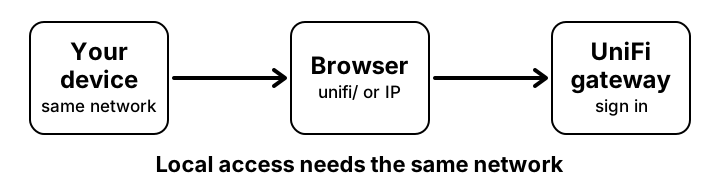
How to open UniFi locally
- Connect your computer or phone to the same local network as your UniFi device.
- Open a browser. For a UniFi Gateway, type unifi/ in the address bar. For a Cloud Gateway, Cloud Key, Network Server or NVR, type its IP address instead.
- Sign in. For local-only setups the default username is admin, and the password is the one set during setup.
- Or use the UniFi mobile app (iOS or Android) and choose your device from the list of detected consoles.
- If it is not listed, tap Can’t Find Your Device, then Console Manual Setup, and enter its details.
If it will not open
- I do not know the console IP
- Connect a phone to the same network, open the WiFiman app and tap Discovery. It lists UniFi devices it finds.
- Which port does the app use?
- Ubiquiti says self-hosted Network Servers use port 8443 and other devices use port 443.
- unifi/ does not open
- Use the console IP address instead, and check that you are on the same network, not mobile data or a VPN.
- I forgot the password
- The help page does not cover recovery. See the router reset guide for the general risks of a factory reset, which erases settings.
Questions people ask about UniFi login
- Is there a default password?
- The help page lists none for gateways. Only the username admin is mentioned, for local-only setups.
- Do I need an account?
- Local management is done from your own network. Ubiquiti also has remote management through its Site Manager, which is a separate topic.
Related pages
- Find your router IP
- Login not working
- Forgot password and reset
- Change Wi-Fi password
- Default IP list
- Security checklist