Spectrum Modem Lights Explained: Blue, Red and White
What the status, voice and Ethernet lights mean on the Spectrum SONU fiber modem and the D3.1 MDU modem, and what to do about a red or white light.
This page covers the Spectrum SONU (10G fiber modem) and the Spectrum D3.1 MDU modem (DOCSIS 3.1, for apartment buildings). The meanings below follow Spectrum’s own user guides for these two models. Other Spectrum modems and routers can behave differently, so check the guide for your model.
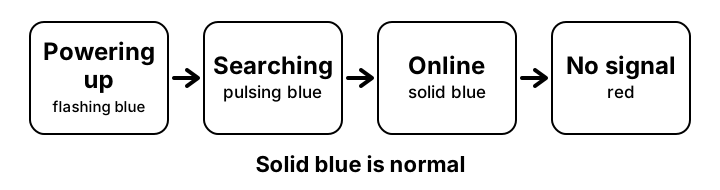
How to read the lights
- Find the lights on the top side of the modem: a status light, a voice light, and on the SONU a battery light.
- Match the status light to the table below. Steady blue is normal.
- A red or red-and-white light means the modem cannot find or keep its connection. Check that the fiber or coax cable is firmly attached and not bent or damaged, then restart the modem (hold the reset button for 4 seconds).
- If the light stays red after a restart, call Spectrum customer service at (800) 495-6590 or use spectrum.net/support. The line itself may be down.
- Do not factory reset as a first step. Holding the button for 10 seconds erases all settings. See the reset guide.
Status light (both models)
| Light | SONU (fiber) | D3.1 MDU (coax) |
|---|---|---|
| Powering up | Flashing between blue and off | Flashing between blue and off |
| Finding the connection | Pulsing between blue and off (looking for the PON signal) | Easing between blue and off (looking for the RF signal) |
| Normal operation | Solid blue | Solid blue |
| Connection problem | Pulsing red and off: PON not operational. Pulsing red and white: PON loss of signal | Not listed in the guide for this model, treat a red light as a lost connection |
| Older speed mode | Not listed | Solid white: operating in D3.0 mode |
| Firmware update | Status, voice and battery lights loop blue in turn until the download finishes | Status light eases between blue and red |
Source: Spectrum SONU and D3.1 MDU user guides. Wording shortened.
Other light problems
- The voice light is off
- The voice light is off when voice service is not set up, or when the modem cannot make a phone network connection. Phone service has to be turned on through spectrum.net/support.
- The voice light is flashing or pulsing
- A phone connected to the modem is off the hook. On the SONU, flashing means it is running on battery and pulsing means mains power. On the D3.1 MDU it eases between blue and off.
- The status light is white
- On the D3.1 MDU a solid white light means the modem is running in D3.0 mode. If speeds are low, ask Spectrum whether the line can use D3.1.
- The lights keep cycling after a power cut
- This is normal while the modem starts. Give it a few minutes. Powering up shows as a flashing blue light.
- The Ethernet port light is off (SONU)
- On the 10G port the left light is green at 10G, amber at 1G and off at 100 Mb. The right light blinks amber while data moves. A dark left light with a connected cable means a 100 Mb link or no device. Try another cable.
- The ATA port light is off (SONU)
- The 1G ATA port is for an external phone adapter only. Its left light is green at 1G or 100 Mb and off at 10 Mb. Do not plug your router into it.
- The lights are fine but the internet fails
- Restart your own router and check the cable from the modem to the router. Then see the router login help if the router page will not open.
Questions people ask about Spectrum modem lights
- Are these lights the same on every Spectrum modem?
- No. They apply to the SONU and the D3.1 MDU modem. Other Spectrum devices may use different colours and patterns.
- Does the modem have a login page?
- These two guides do not give a login address or default password. They are modems that connect to your own router, so most settings come from Spectrum. Your Wi-Fi router, if you use one, has its own address. See <a href="/router/find-router-ip">how to find your router IP address</a>.
- Where do I get support?
- The Spectrum guide lists spectrum.net/support and customer service on (800) 495-6590.
Related pages
- Find your router IP
- Login not working
- Forgot password and reset
- Change Wi-Fi password
- Default IP list
- Security checklist